
By the end of this tutorial, you will have a one-page service draft with a clear order, usable images, a sensible contact path, and a checklist you can actually test. You can assemble it in your existing website builder or use the editable HTML starter supplied with this guide.
We will use a fictional kitchen-organizing service. Its name, offering, and illustrations are practice material, not a real customer story. Replace every example with facts about your own work before publishing.
You need a text editor or notes document, your website builder or the starter file, and a browser. One approved photograph is enough to start. If you do not have one, use the labeled illustration for practice rather than pretending it shows your work.
1. Write the page’s job in one sentence
Use this shape:
“This page helps [person] understand [specific offer] and [next step].”
Our example:
“This page helps a homeowner understand a kitchen-organizing visit and ask whether it fits their space.”
Keep that sentence beside the page while you build. For this exercise, leave unrelated services out. You can link to them elsewhere later.
Choose a next step you can genuinely support. An inquiry is different from a confirmed booking. We will use “Ask about a kitchen reset,” because availability and scope still need a conversation.
2. Write six sections before decorating them
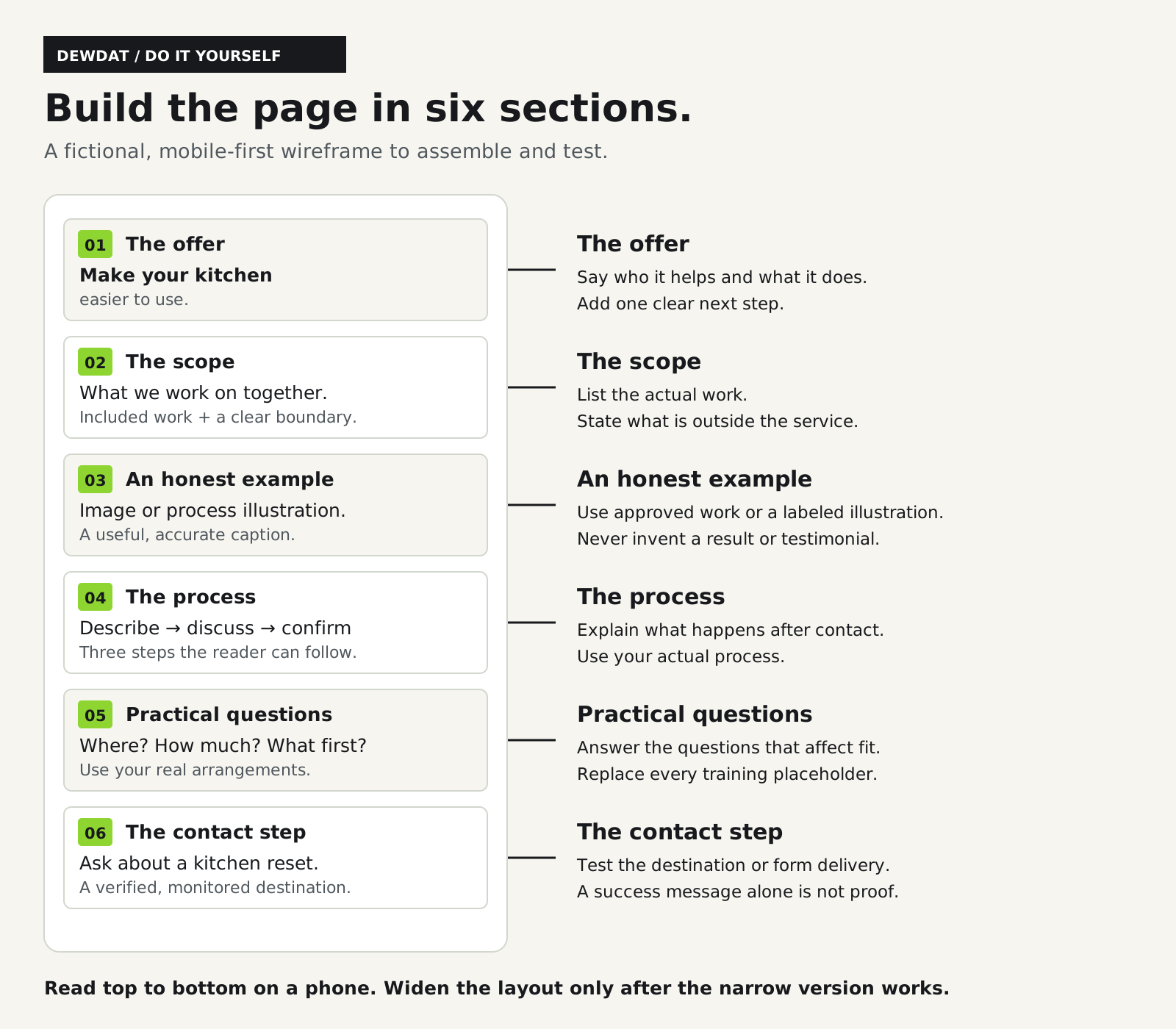
Open a document and add these headings in this order. Fill them with your own words, or use the fictional copy below to practice assembling the page.
Section 1: The offer
Headline: “Make your kitchen easier to use.”
Explanation: “A focused organizing visit to help you sort everyday kitchen items and choose practical places for the things you use.”
Button: “Ask about a kitchen reset.”
Short expectation beside the button: “Start with a question. Appointment details are agreed separately.”
The headline should say something concrete. If yours could describe a fitness coach, a bookkeeper, and a furniture shop equally well, make it more specific.
Section 2: What is included
Heading: “What we work on together.”
Three bullets:
- Identify the kitchen areas that cause the most frustration.
- Sort the agreed items and decide what belongs together.
- Arrange everyday items in places that fit how you use the room.
Boundary: “This example covers organizing, not cleaning, repairs, or disposal services.”
Replace the list and boundary with your real scope. Do not promise a service because the example includes it.
Section 3: Something the visitor can evaluate
Heading: “A simple way to explain the approach.”
Use one approved image with a useful caption. In the practice page, a labeled shelf illustration shows three groups: daily use, occasional use, and review together. It explains the idea without pretending to be a completed project.
If you have a real project photo, explain what is visible and what work you actually performed. If you have no permission-cleared example, show your process instead. Do not invent a testimonial or a before-and-after result to fill the space.
Section 4: What happens next
Heading: “From question to a plan.”
Three steps:
- Describe the space and the kind of help you want.
- Discuss the scope, location, timing, and cost.
- Confirm the agreed visit before it is booked.
Your real steps may differ. Keep them short enough for a first-time visitor to follow.
Section 5: The practical questions
Start with three questions: Where is this available? What affects the cost? Do I need to buy anything first?
Answer them using your actual arrangements. In the example page these are visibly marked as items to complete, because a fictional location or invented price would make the template less trustworthy.
For a Hawaiʻi business, the location answer might need to distinguish an island, an actual travel area, and remote work. For an Atlanta-area service, it might need a realistic travel boundary or pickup arrangement. Write the information that changes whether someone can use the service.
Section 6: The contact step
Repeat the same next action from the opening. Say what information is useful and how the person will contact you.
For this exercise, start with a monitored business email address you are allowed to publish. You can add a properly configured form later. Do not collect documents or sensitive information simply because your builder offers an upload field.
3. Assemble one column first
In your builder, create an unpublished page with those six sections in the same order. Use its current documentation to locate sections, heading levels, image settings, and preview controls; their names vary by product and version.
If you are using the supplied starter, keep landing-page-starter.html and the assets folder together. Open the HTML file in a browser to preview it. Open the same file in a plain-text editor to change the example text between the content tags, save it, and refresh the browser. No package install, account, or build command is required.
Start at a narrow width. For this example, use these design choices:
- One column, with 20 pixels of space between the content and each side.
- Body text around 18 pixels, with a line height of 1.55.
- A headline that wraps naturally instead of being forced onto one line.
- Approximately 40–64 pixels between major sections.
- A solid, high-contrast button at least 44 pixels high, with enough room for its label to wrap.
- No fixed-height boxes around paragraphs.
These are starting values for this layout, not universal standards or an accessibility certification. If the content feels cramped, adjust the spacing before shrinking the text.
Use one main page heading and descriptive headings for the following sections. Choose heading levels for the structure, then style them. W3C's headings tutorial explains why that organization matters for navigation, including assistive technology.
4. Prepare one image that will survive a small screen
For the practice image, use the included 1600 × 1000 SVG illustration. It scales without needing a large photograph. For your own photo, start from an original you have permission to use and make a separate web copy. Keep the original.
A practical first export for this example is 1600 × 1000 pixels, a 1.6:1 ratio. That fits an image area around 800 pixels wide at twice that pixel density. It is a starting calculation, not a required size for every website.
Crop deliberately. Keep the important subject away from the edge, then preview the image at phone width. Do not stretch a portrait into a wide rectangle. Choose a different crop or let the image retain its shape.
For photographs, export a compressed WebP or JPEG if your builder supports it. Compare the output with the original at the size readers will see. A working budget of roughly 150–300 KB for this single image is a useful starting aim, not a pass/fail rule. Detail and quality needs vary. If a file is several megabytes, try smaller dimensions and stronger compression, then inspect it again.
Set the image to fit the available width while preserving its proportions. In HTML, the starter uses a maximum width of 100%, automatic height, and explicit width and height attributes. Those dimensions help the browser reserve space. Google's responsive-image guide explains this behavior and the difference between fitting and cropping an image.
Write the alternative text for what the image communicates. For the supplied illustration: “A practice shelf layout groups items into daily use, occasional use, and a group to review together.” The nearby caption says clearly that it is an illustration. Do not bury the service name, price, or button inside an image.
5. Make the contact step work before adding more features
The starter's buttons move to the contact section. They do not send a message or create an appointment. The contact section deliberately contains a visible [YOUR BUSINESS EMAIL] placeholder so you cannot mistake it for a working business address.
Replace that placeholder with your monitored address. For a clickable email link, use the same address in the visible text and in the link's mailto destination. Keep the address readable so someone can copy it if their device has no email app configured.
If you use a form instead, configure its recipient and any required delivery settings using that provider's current instructions. Give every field a visible label, explain errors, and show a clear completion message. Then send one authorized, labeled test using your own information and verify that it reaches the intended inbox. A page saying “Thank you” does not prove delivery.
Do not put an apparently working form on the page when its destination is still unknown. W3C's forms guidance is a useful reference for labels, necessary fields, and feedback.
6. Let the wider version grow from the narrow one
Now increase the preview width. The desktop version can put a section’s text beside its illustration and display the three process steps side by side. Keep the reading order logical when those areas stack again.
In the starter, one CSS media query introduces wider layouts at 48rem, about 768 pixels with the usual 16-pixel base size. That breakpoint suits this example's content. If your longer headline or navigation needs more room, change the layout where the content needs it rather than targeting one phone model.
The starter includes a device-width viewport setting and uses fluid widths. MDN's responsive-design guide explains the roles of the viewport, flexible layouts, and media queries.
7. Run this pass/fail check
Open the actual preview in a browser, not only the editor canvas. Mark each check Pass, Fix, or Not applicable.
- Meaning: hide the picture. Can you still identify the service, the audience, and the next step?
- Narrow screen: at 320 and 390 CSS pixels wide, can you read ordinary page content without scrolling sideways? Do the button labels and long contact details wrap?
- Zoom: increase browser zoom. At a 1280-pixel-wide viewport, check 400% zoom as a reflow exercise. Essential text and controls should remain available without two-directional scrolling for this simple layout. W3C's reflow guidance explains the 320-CSS-pixel relationship and exceptions.
- Keyboard: use Tab, Shift+Tab, and Enter. Can you see the focused control and follow every link? Does the skip link reach the main content?
- Images: confirm the image loads, the crop keeps the subject, the caption is accurate, and the alternative text conveys useful information.
- Contact: confirm the button reaches the right place. If using a form, verify receipt of a test. If using an email link, verify the destination without sending an unintended message.
- Facts: search the page and source for brackets, “fictional,” “practice,” and “example.” Replace or intentionally retain every training label. Do not publish invented scope, location, price, or proof.
- Phone: check the page on a real phone when possible. Read it at normal size and enlarged; try the next step.
This is a useful first review, not a complete accessibility, security, or launch audit. Write down any failed check with the section and the result you expected. Fix those items and repeat the relevant tests.
What you should have now
You should have a complete private draft: six sections in a deliberate order, an image that fits, a contact route that is either tested or clearly marked unfinished, and a recorded test result.
Save a copy before making further changes. If it still needs work, the checklist will tell you what. You do not need to add an animation, a newsletter, or five more pages to make this exercise worthwhile.