
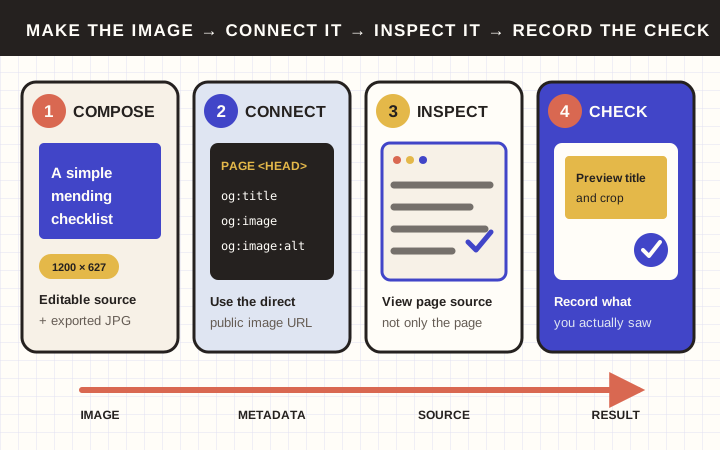
A page can look right in your browser and still show an old image when someone shares its link. The page artwork and the link-preview metadata are separate things.
This tutorial makes one simple title card, connects it to a page, and checks a LinkedIn preview. It does not publish a social post. Other platforms may crop, cache or interpret the same metadata differently.
You will finish with: an editable image file, an exported JPG, the page's share metadata and a dated preview check.
You need: a browser, permission to update the page, and an existing LinkedIn account if its preview tool asks you to sign in. The image workflow uses the free Photopea editor. No purchased stock photo is necessary.
Research status: official sources checked 22 October 2026. No live editor, CMS, deployed metadata or LinkedIn preview was tested for this draft. The example is fictional. Replace every example URL with your own verified address before use.
1. Make a simple image
Open Photopea. Use a text-only example so that image licensing is not an obstacle.
- Choose File → New. Set the width to 1200 pixels and height to 627 pixels. Create a document with a white background.
- Choose the Type tool. Drag a text box well inside the canvas and enter two lines:
A simple mending checklist
- Select the text and use a dark color and a plain, bold font. Begin around 84 pixels, then adjust if the line wraps or clips. Leave generous empty space around the text. Those are design starting points, not platform requirements.
- Confirm the text edit using the confirmation button in the top toolbar before continuing. The Escape key can cancel the edit.
- Keep the important words away from the edges. At a small zoom level, check that the title is still readable.
Photopea documents custom-size creation and text boxes in its new-document workflow and Type tool guide. The 1200 × 627 choice comes from LinkedIn's documented link-preview frame, approximately 1.91:1. It is a starting point for this particular destination, not a universal social-image requirement. LinkedIn link previews
If the text will not fit, shorten the title or reduce its size. Do not stretch the whole image to force it into the frame. The picture is an accompaniment; the page itself still needs a readable title and useful text.
2. Keep an editable copy and export a web copy
Choose File → Save as PSD and save mending-checklist-share.psd. This keeps the editable document structure.
Then choose File → Export As → JPG. Confirm the export is still 1200 × 627 and save mending-checklist-share.jpg. Reopen the JPG and inspect the text edges. If compression has made the lettering visibly rough, export again with a higher quality setting. Keep the background white rather than relying on transparency in a JPG. Photopea saving and export
Check the JPG's file size in your computer's file information. Keep it below LinkedIn's documented 5 MB maximum. If needed, lower export quality while retaining 1200 × 627, then recheck readability. LinkedIn website-sharing requirements
Do not rename a PSD's extension to .jpg; exporting creates the different format. Keep both files, because flattened JPG text is not the same as an editable text layer.
3. Give the image a real public URL
Upload the JPG through your site's normal media or asset workflow. Copy its direct image address. It should open the picture itself, not a cloud-drive viewer, media-library dashboard or sign-in page.
For this exercise, the placeholders are:
Page:  https://example.com/guides/mending-checklist
Image: https://example.com/images/mending-checklist-share.jpg
These are examples, not a working page or asset. Your final URLs must be real.
Open the actual image address in a logged-out/private window. Confirm that the correct JPG loads. This proves access in that browser, not that every social crawler can fetch it. Do not make a private client page or confidential asset public just to get a preview.
4. Connect the image to the page
If your CMS has social-sharing settings
Open the page's editing screen and use its documented social title, description and image fields. Choose the JPG, not the PSD. Save the approved change through your normal preview/publish process.
Field names vary. If you cannot find them, check the documentation for your actual CMS or ask its maintainer. Do not install a new plugin or paste duplicate metadata into a random content block. After saving, continue to the source and preview checks below.
If you maintain the page's HTML
Place the following metadata in the page's <head>, replacing both example URLs. Update existing fields rather than appending a second competing set.
<meta property="og:title" content="A simple mending checklist">
<meta property="og:type" content="website">
<meta property="og:url" content="https://example.com/guides/mending-checklist">
<meta property="og:description" content="A short preparation checklist for a small hand-mending project.">
<meta property="og:image" content="https://example.com/images/mending-checklist-share.jpg">
<meta property="og:image:type" content="image/jpeg">
<meta property="og:image:width" content="1200">
<meta property="og:image:height" content="627">
<meta property="og:image:alt" content="Dark text reading A simple mending checklist on a white background.">
Open Graph defines title, type, image and URL as its four basic required properties. Here og:url identifies the page; og:image points directly to the picture. Image dimensions describe the actual export, and the alternative text describes the image. Keep the image's related fields together. Open Graph specification
Do not paste the placeholder description onto an unrelated real page. Write an accurate description of that page instead. These fields help platforms interpret a link; they do not force a particular layout or guarantee ranking.
5. Inspect what the public page actually serves
Visit the final public page, then use your desktop browser's View Page Source command. Search the source for og:image and og:title.
Check that:
- They appear inside
<head>and contain the current values. - The image URL is the direct JPG address you checked.
- No old theme or plugin is supplying a competing image first.
og:urlis the intended public page, not a staging or administrator address.- No
example.complaceholder remains.
This is a practical diagnostic check. Seeing an element in a browser's live inspector after JavaScript runs is not the same observation as finding it in the page source. If the metadata is missing from source or differs between tools, give that evidence to the maintainer; do not assume a screenshot of the page proves the crawler's result.
6. Check the destination platform, without posting
Open LinkedIn Post Inspector, enter the actual public page URL, and inspect the returned preview. Confirm the title, image and destination. If required, sign in through LinkedIn's own normal account flow.
If you previously shared the URL, the service may have an older cached image. LinkedIn documents Post Inspector as a way to refresh that information. It also warns that updates affect new posts, not the previews already attached to existing posts. LinkedIn's cache and refresh explanation
For an additional visual check, open LinkedIn's post composer, paste the public page URL, and wait for a preview. Inspect it without selecting Post. Close or discard the draft when finished. Do not paste a private preview URL containing an access token into a third-party checker.
If an image does not appear:
- Recheck the direct image URL and page metadata.
- Confirm you tested the final page, not an old or redirected address.
- Record any error from Post Inspector.
- Ask the site maintainer whether the public page or image is blocked from the relevant crawler. Do not disable authentication, firewall protection or other security controls as a blanket fix.
Do not assume an immediate refresh is guaranteed. LinkedIn's separate troubleshooting guidance advises allowing 48 hours for changed tags or cached content to update. Record the result you actually see rather than calling an unchanged preview fixed.
Different services keep different caches. A correct LinkedIn result is evidence for LinkedIn at that time, not a guarantee for every platform forever.
Keep a small completion record
Page checked:
Direct image URL:
Export dimensions: 1200 × 627
JPG file size below 5 MB: yes / no
Page source contains current metadata: yes / no
Platform checked: LinkedIn
Preview title and crop acceptable: yes / no
Checked on:
Remaining issue, if any:
Done: the image is readable, its direct URL works, the page serves the intended metadata, and you have checked the actual target preview. No social post is required to complete the exercise.