Short answer: choose one important visitor path, move through it with the keyboard in both directions, operate each control with its intended keys, and record the exact point where focus disappears, becomes hidden, or gets trapped.
Finish with: one dated keyboard-test card that identifies the environment, path, steps, expected behavior, actual behavior, and owner for every unresolved barrier. This is a focused preliminary check, not accessibility certification.
Verification status: W3C preliminary accessibility guidance was reviewed for this draft. The protocol below has not been run on live v239. Its example uses a controlled fictional preview and never submits a form, buys a product, changes an account, or triggers an external action.
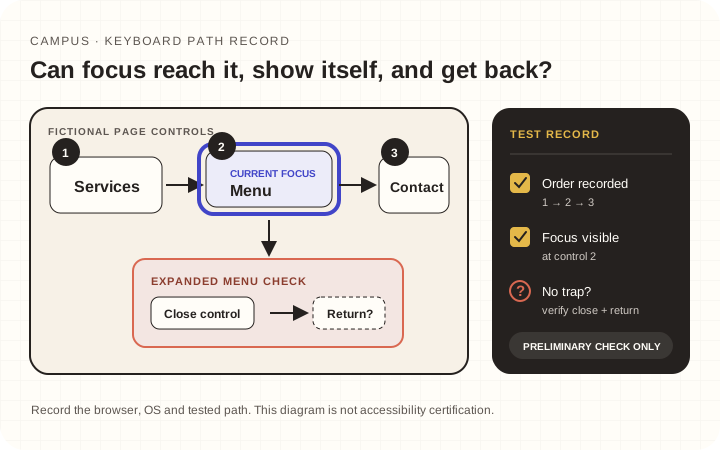
Illustrative test path. It is not proof that a live page passed.
Test card
Complete this before pressing Tab:
Page or preview:
Browser and version:
Operating system:
Viewport:
Visitor task:
Start point:
Stop before:
Test date:
Tester:
Use a private preview or a site you are authorized to inspect. Choose a meaningful path—for example, open the mobile menu, reach a service link, return to the article, and reach the next-reading control. State that the test stops before any form submission or external action.
Before pressing Tab, configure and record any browser or operating-system setting that determines whether keyboard navigation includes webpage links and controls. The W3C's preliminary keyboard-interaction check calls out this setup. If links appear to be skipped, verify the setting before recording a site defect.
Browser and operating-system behavior can differ, so the exact browser version, operating system, navigation setting, viewport, and input method belong in the result. One pass in one environment is evidence about that path, not the whole website.
Pass 1 — follow focus forward
For ordinary sequential navigation, use Tab to move forward and Shift+Tab to move backward. Some composite widgets use other documented keys once focus enters them, so record the component and expected interaction rather than treating Tab as the only keyboard command. At each stop, ask:
- Can I see which element has focus?
- Does its accessible purpose match what is visible?
- Does the focus order preserve the page's meaning and operation? It need not mirror the visual layout exactly, but it should not jump in a way that changes context or blocks the task.
- Is the focused element fully visible rather than covered by a sticky bar or clipped inside an overlay?
The W3C Easy Checks guidance describes visible keyboard focus and preliminary keyboard checks while emphasizing that easy checks are not a complete conformance evaluation.
Record each problem at the moment it appears. “Focus disappeared after the third Tab press from the menu button” is more reproducible than “keyboard navigation is bad.”
Pass 2 — operate the controls you reached
Activate each control with its native or documented keyboard behavior. Native links commonly use Enter; native buttons commonly use Enter or Space. Custom composite widgets can require a different published key pattern, which must be implemented and checked rather than guessed.
Do not force one remembered key pattern onto every control. If you cannot determine how a widget is intended to work, record that uncertainty and send it for component-specific review.
For the controlled example, test:
- opening and closing the menu;
- reaching each visible menu destination;
- activating one harmless internal link;
- returning with browser Back;
- reaching any expand/collapse control;
- reaching fields and the submit button without sending the form.
Reaching a field does not establish that its label, instructions, validation, or error recovery are accessible. Those require separate checks.
Stop if a control would purchase, publish, send, delete, subscribe, or change an account. Keyboard reachability and authorization to perform an action are separate.
Pass 3 — reverse the path and challenge overlays
Use Shift+Tab to return through the same controls. Identify what an overlay actually is before selecting the test. For a modal dialog, the W3C ARIA Authoring Practices modal-dialog pattern describes moving focus inside, keeping the tab sequence within the open dialog, providing a keyboard-operable close route, and returning focus to the invoking element or another logical workflow target. Disclosures and non-modal overlays can have different patterns.
Open the menu or relevant overlay again and check:
- whether focus moves behind the visible layer;
- whether the close control is reachable;
- whether closing returns focus somewhere sensible;
- whether a fixed header hides the focused target;
- whether you can leave every interactive region without reloading the page.
If focus appears trapped unexpectedly, stop and write the smallest repeatable sequence. Do not press keys blindly after losing orientation.
Issue record
Use this form for each failure:
Issue ID: K-
Page and component:
Environment:
Starting element:
Keys pressed:
Expected:
Actual:
Focus visible? yes / no / uncertain
External action triggered? no
Owner:
Recheck status: pending / fixed / still failing
A controlled example might read:
K-03 · Mobile menu · Safari/macOS · Start on Menu · Press Enter, then Tab four times · Expected focus to reach Close · Actual focus moved to a link behind the overlay while the menu stayed open · No external action triggered · Owner: navigation maintainer.
That example is fictional. Do not present it as a live FTS defect.
Recheck without overclaiming
After a maintainer changes the page, repeat the exact failing sequence in the same environment, then test the reverse path and a neighboring control. Mark only the recorded issue fixed. Do not call the website accessible because one route passes.
A broader review may also require screen-reader testing, zoom/reflow, contrast, captions, form behavior, error recovery, and participation from people with disabilities.
Completion check
The keyboard pass is complete when the tested task has a reproducible result, every unresolved barrier has an owner, and the record states exactly what was and was not exercised. No form submission or external action is needed.
Verification note: Primary guidance was rechecked on 23 October 2026. No live website was certified or tested for this article; each future result must retain its recorded browser, operating system, keyboard-navigation setting, viewport, and test limits.